

Show loyalty data in Gorgias tickets
Give your support team the customer’s loyalty picture next to every ticket: points balance, VIP tier, active discount codes, referral link and the latest points activity — without leaving Gorgias.
The connection uses Gorgias’s HTTP integration together with Charm’s API, so there is nothing to install on either side. Set it up in two stages:
- The card (this is the whole integration for most teams) — a read-only widget in the ticket sidebar.
- Action buttons (optional) — let agents adjust a balance or redeem a reward straight from the ticket, using the same API key.
Before you start
Section titled “Before you start”Ask Charm support to enable API access for your store. The API is available on every plan, but it is switched on per store so we can keep an eye on the first days of traffic. Settings → API keys shows the current state — the API access toggle reads Active once you’re set.
Step 1 — Create the API key in Charm
Section titled “Step 1 — Create the API key in Charm”Charm has a Gorgias card that sets the key up for you, so you never have to work out the scopes yourself.
-
In Charm, go to Settings → Integrations, find the Gorgias card, expand How to set it up and click Create the API key.
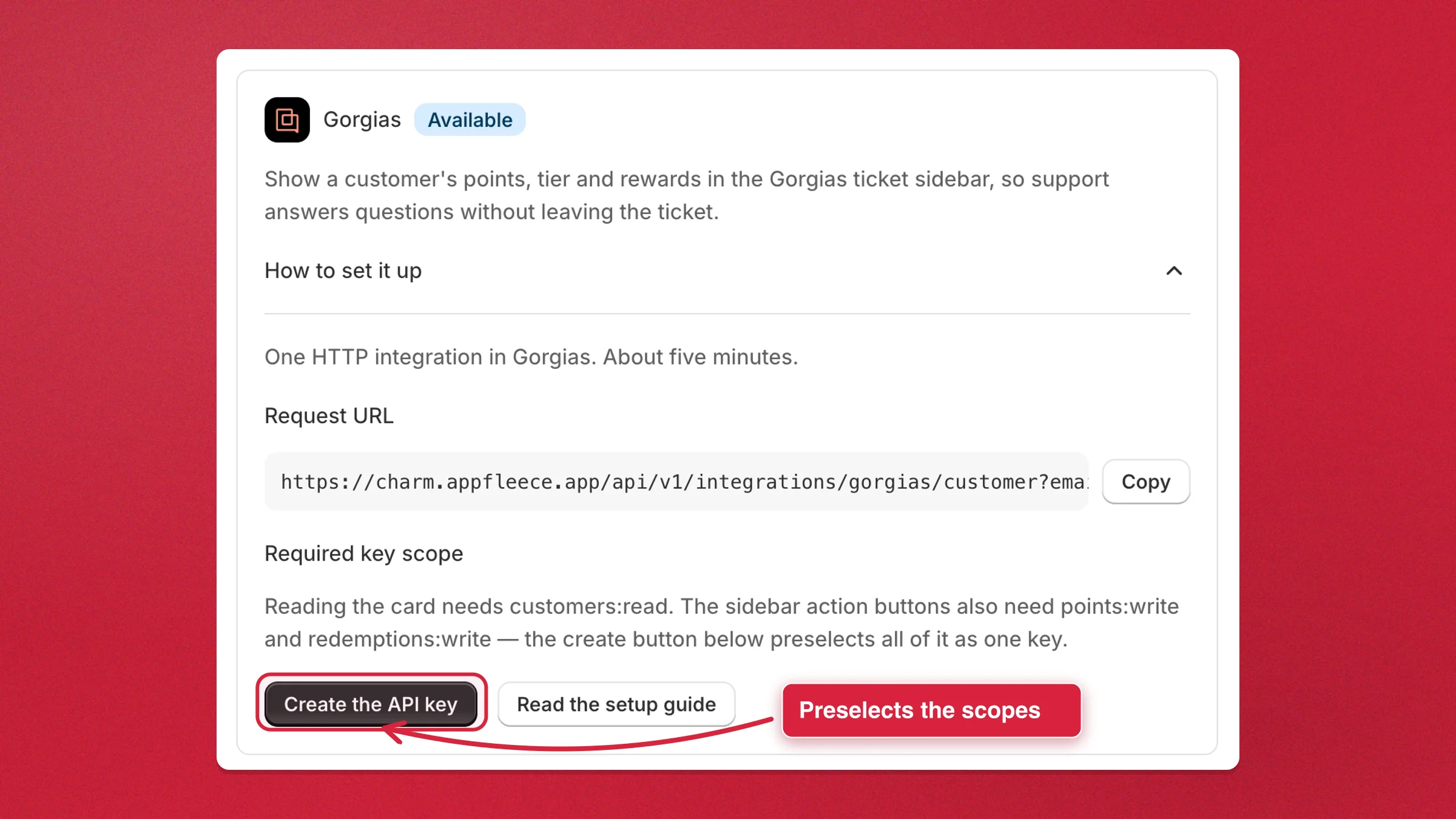
The Gorgias card in Charm settings, with the Create the API key button highlighted -
The dialog opens already named
Gorgias, with exactly the scopes this integration uses ticked and nothing else. Click Create key.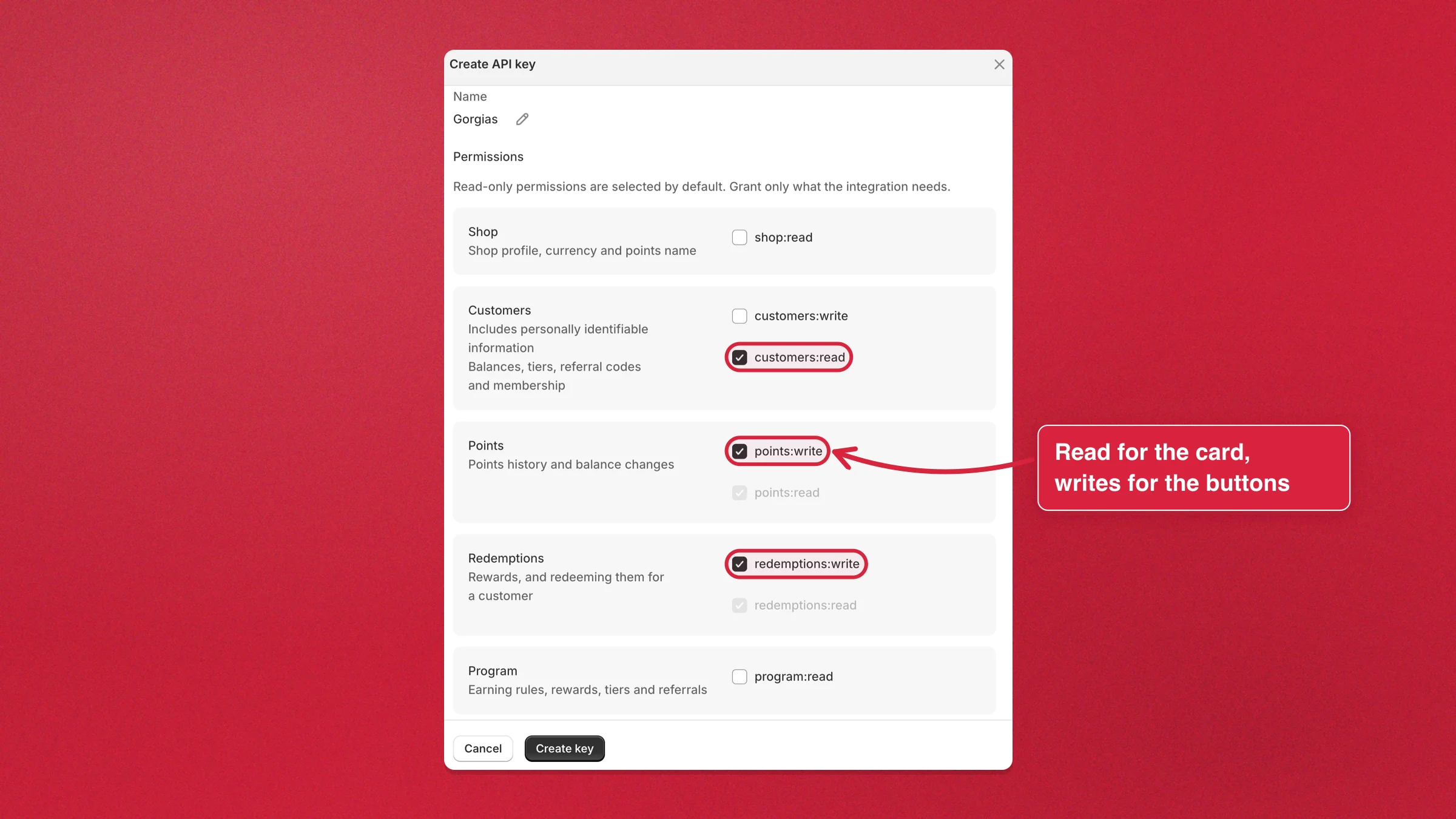
The Create API key dialog with customers, points and redemptions preselected Those three are the whole story:
customers:readis what the sidebar card reads, andpoints:writeplusredemptions:writeare what the optional action buttons need. The greyedpoints:readandredemptions:readcome along automatically, because a:writescope always includes its read sibling. -
Click Copy key and paste the token somewhere safe for the next step.
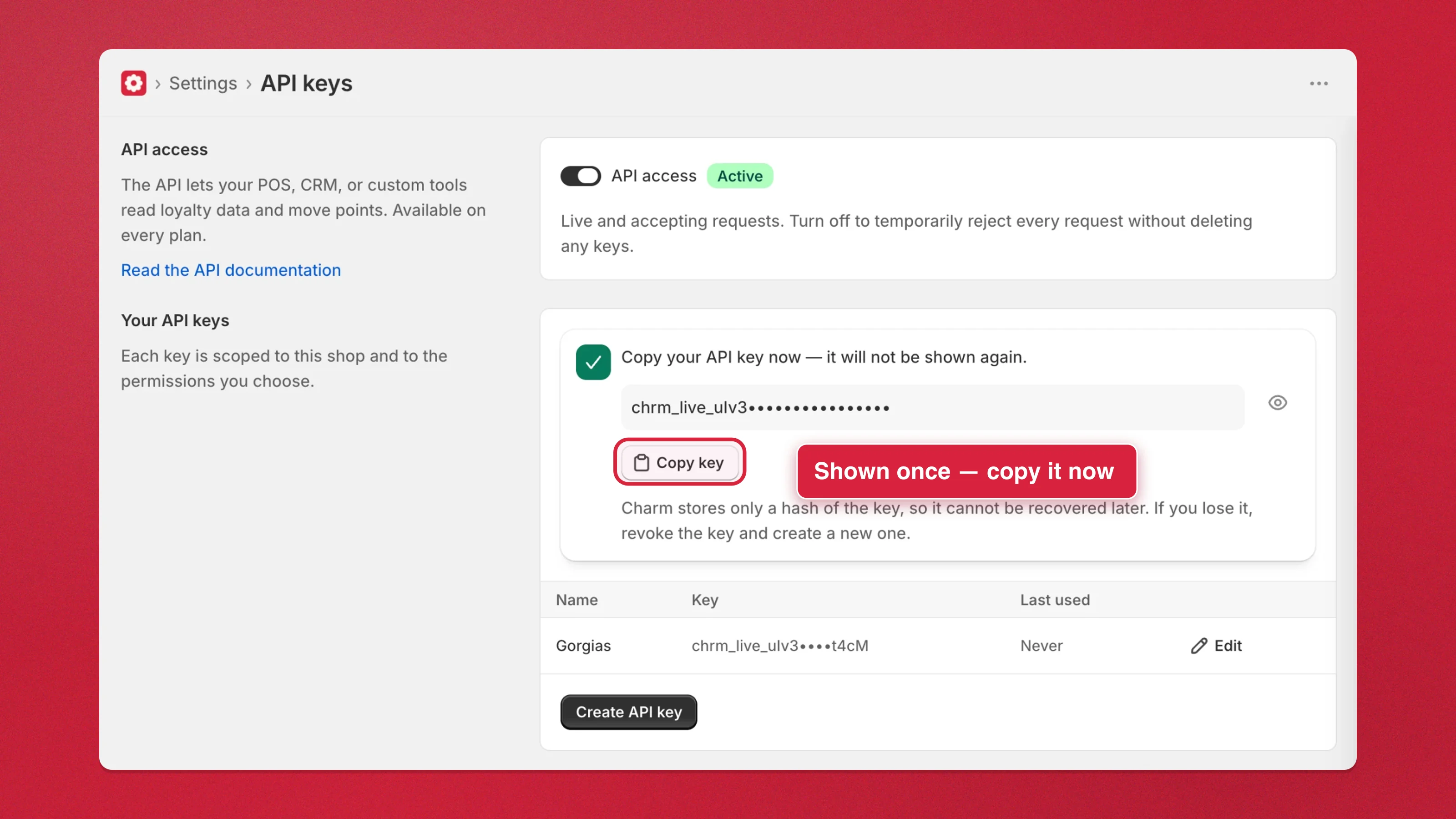
The new Gorgias key on the API keys page, with the Copy key button highlighted Charm stores only a hash of the token, so this is the one moment it is readable. Lose it and you rotate the key rather than recover it.
Step 2 — Create the HTTP integration in Gorgias
Section titled “Step 2 — Create the HTTP integration in Gorgias”-
In Gorgias, go to Settings → Account → HTTP integration and click Add HTTP Integration.
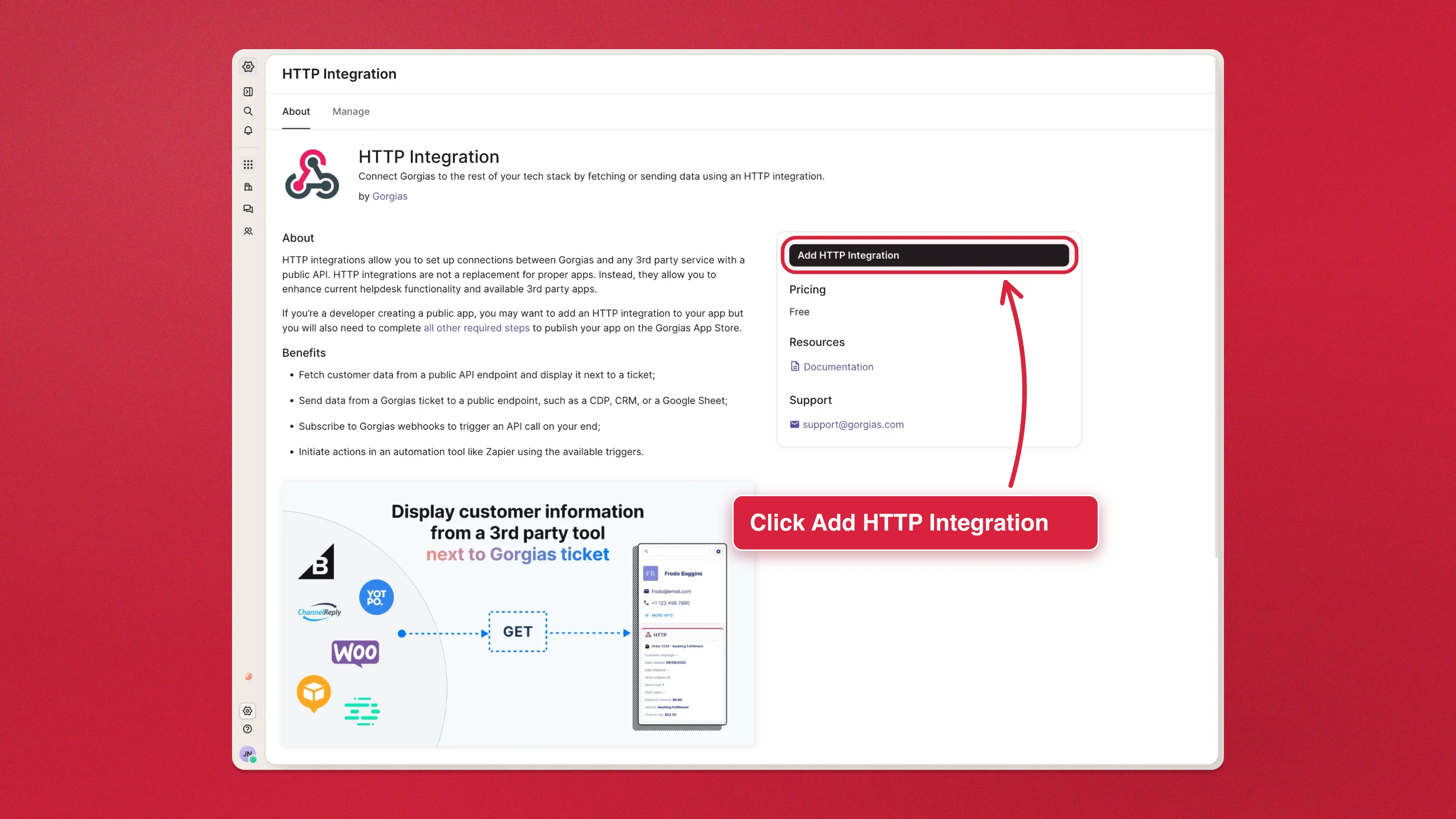
The HTTP Integration page in Gorgias settings, with the Add HTTP Integration button highlighted -
Name it
Charm. -
Under Triggers, tick Ticket created and Ticket updated.
-
Set the URL to:
https://charm.appfleece.app/api/v1/integrations/gorgias/customer?email={{ticket.customer.email}}The Gorgias card in Charm has this as Request URL with a Copy button next to it, so you can paste it instead of typing it.
-
Set the HTTP Method to
GETand Response content type toapplication/json. -
Under Headers, add one row — a fixed value, so leave Editable and Required clear:
Type Label Key Value TextAuthorizationAuthorizationBearer chrm_live_… -
Leave the OAuth2 toggle off and click Add integration.
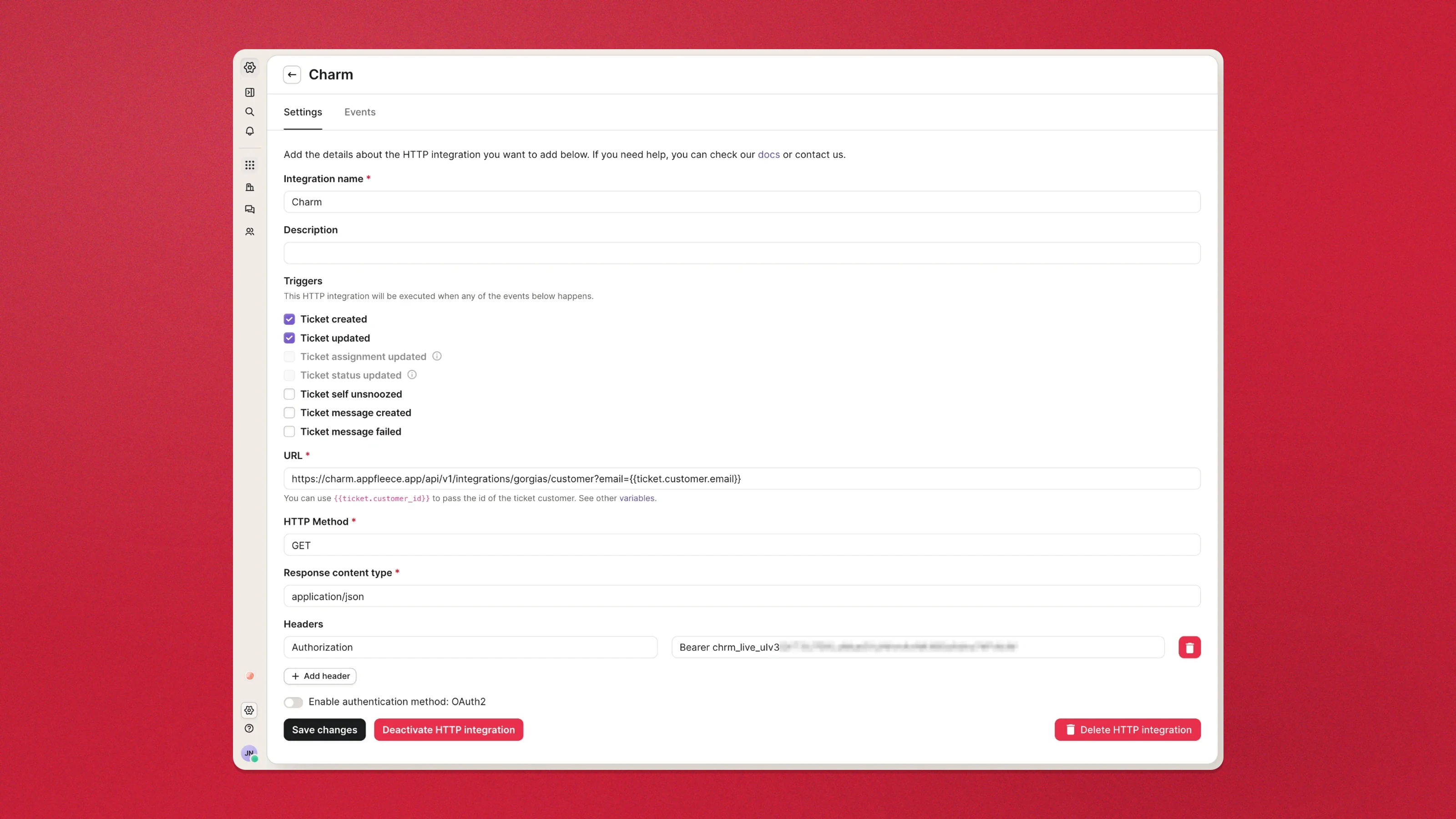
The field hint under the URL box suggests {{ticket.customer_id}}. Ignore it — Charm matches the customer by e-mail address.
Step 3 — Check that it runs
Section titled “Step 3 — Check that it runs”The integration page has an Events tab listing every call it has made, with the status code and the full response body. That is the fastest way to see whether the connection works.
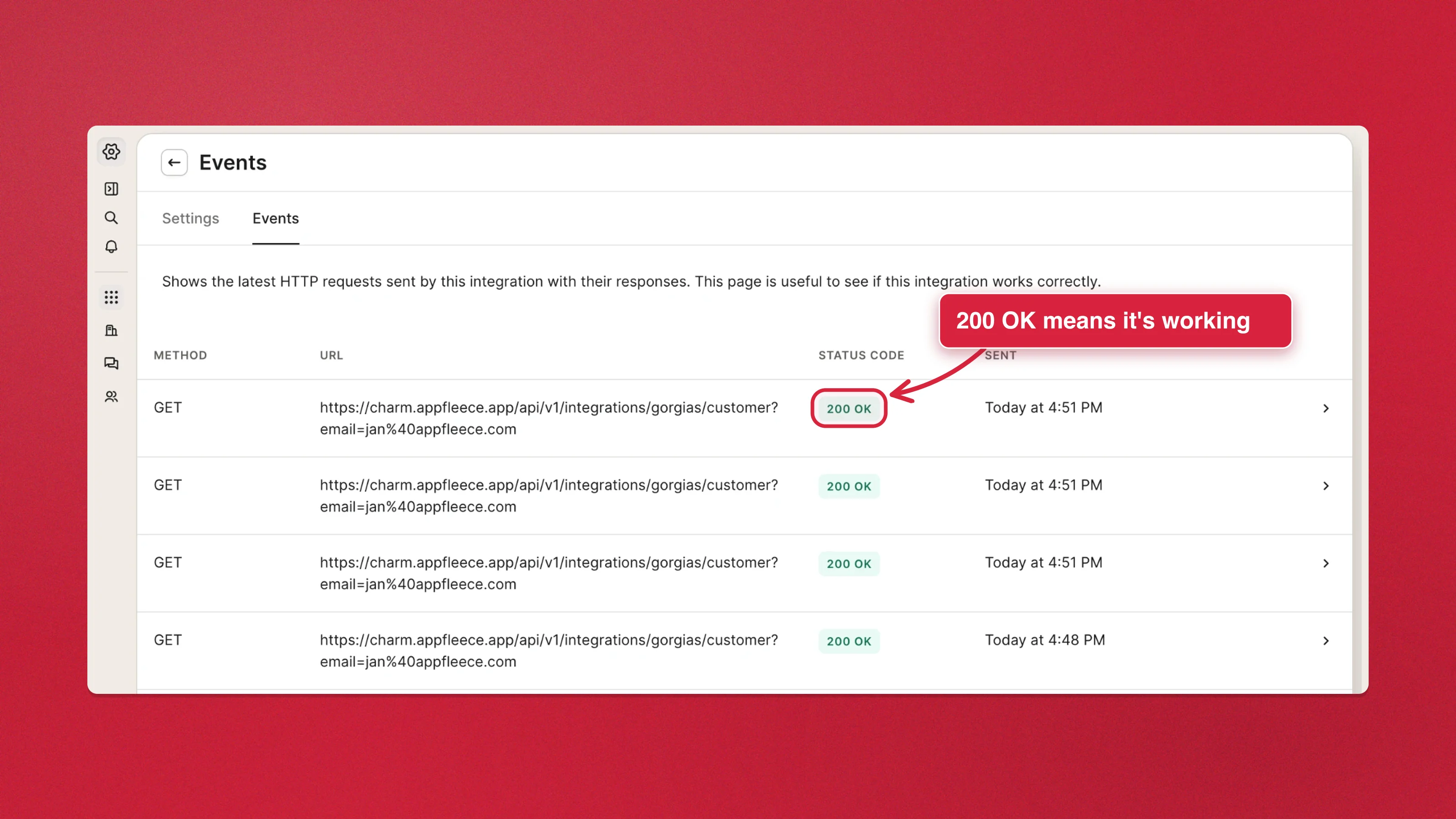
A 200 OK whose body starts with "found": true means everything is wired up. If you’d rather test from a terminal:
curl -s -H "Authorization: Bearer chrm_live_…" \ "https://charm.appfleece.app/api/v1/integrations/gorgias/customer?email=member@example.com"| Response | What it means |
|---|---|
200 with "found": true | Working |
200 with "found": false | Working — that e-mail simply isn’t a program member |
401 invalid_token | Wrong key, a rotated key, or a key from a different store |
403 access_required | Support hasn’t enabled API access for the store yet |
403 insufficient_scope | The key is missing the customers:read scope |
422 validation_error | The ticket had no customer e-mail address |
Step 4 — Add the widget to the sidebar
Section titled “Step 4 — Add the widget to the sidebar”Gorgias only offers the widget once the integration has successfully fetched data for the customer on the ticket you have open. On a ticket that existed before you set this up, nothing has been fetched yet.
-
Open a ticket whose customer is a loyalty member.
-
If the sidebar offers nothing, add a tag to the ticket. That fires Ticket updated, which runs the integration. Reload the page.
-
Click the gear icon on the right of the ticket sidebar, hover Edit widget data and choose Add new widget.
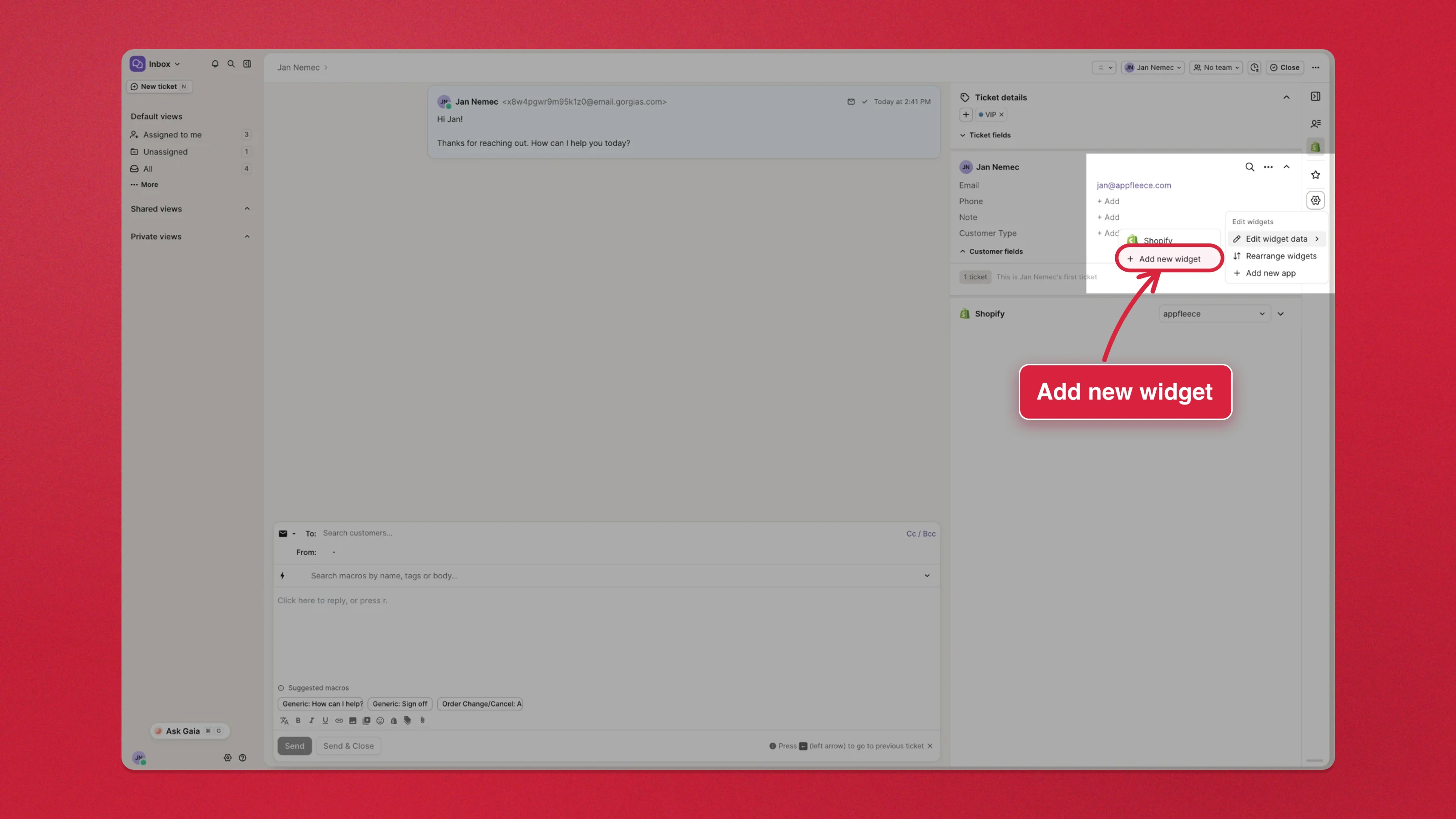
The Gorgias ticket sidebar gear menu, with Add new widget highlighted -
Drag the Charm block from the left list into the sidebar on the right, then click Save changes.
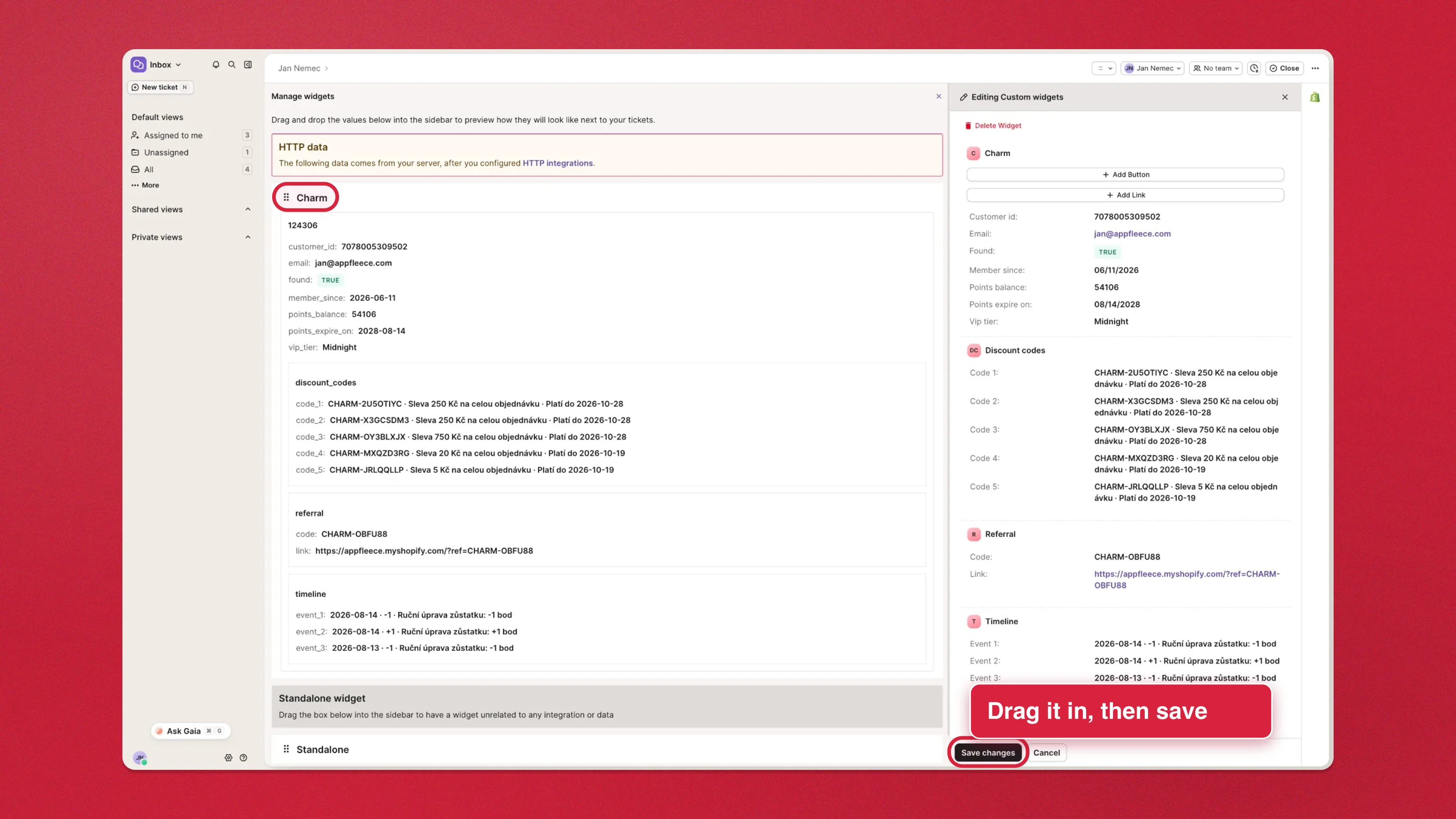
The Gorgias widget editor, with the draggable Charm block and the Save changes button highlighted
In the same editor you can rename any label, hide rows you don’t need, and reorder the widget against your other sidebar cards.
What the card shows
Section titled “What the card shows”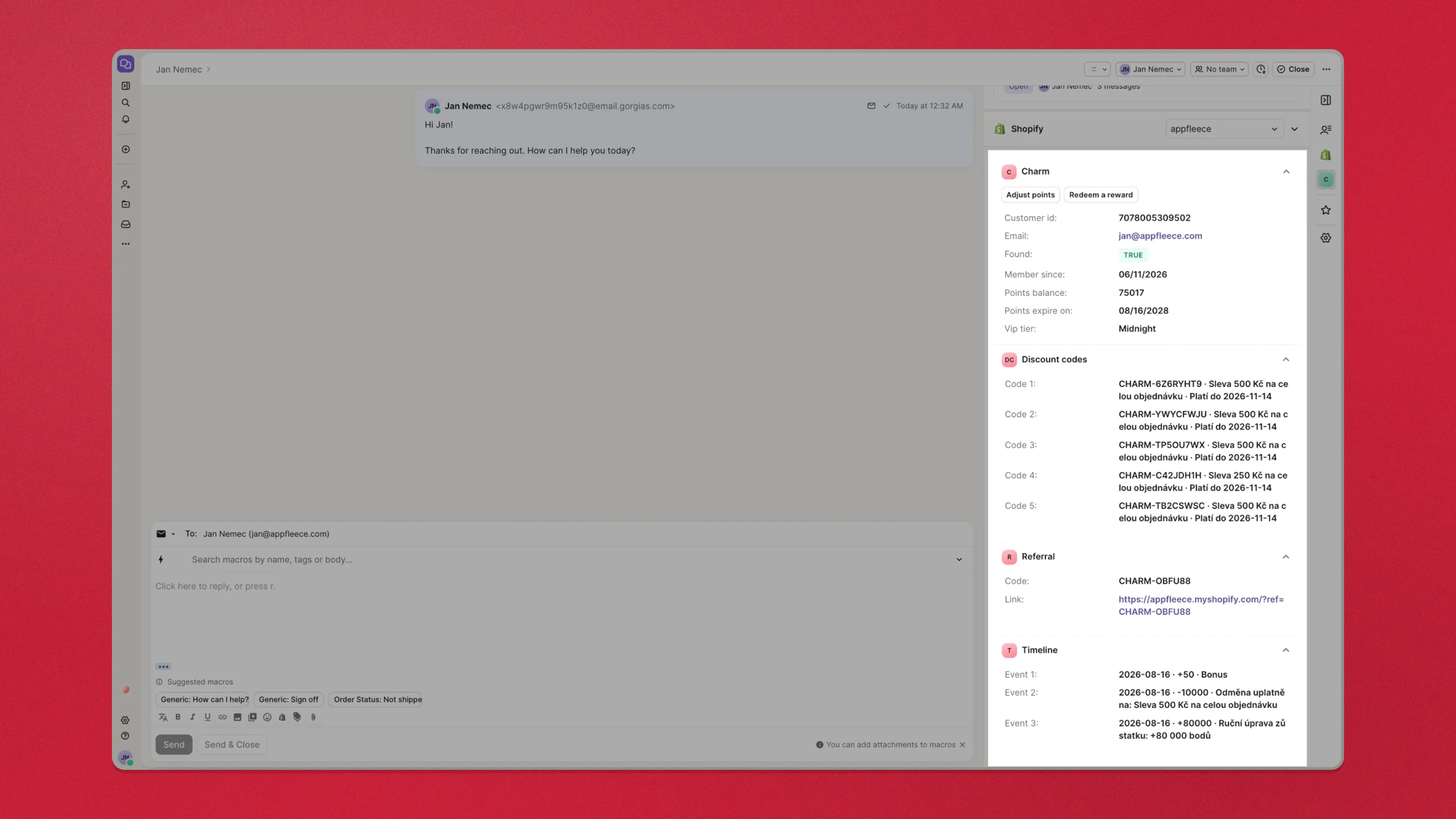
The card is an overview plus up to three collapsible sections, so the numbers an agent needs at a glance stay at the top and the detail folds away.
Overview
- Points balance, plus pending points when the customer has any still in their waiting period
- Points expiry date, if your program expires points
- VIP tier, how long it lasts, the next tier and how much is missing to reach it
- Member since
- Email — the address the card was matched on, which is how you spot a ticket carrying a helpdesk relay address instead of the shopper’s own
Discount codes — every code the customer has redeemed but not yet used, newest first, each on its own row with the reward it came from and the date it expires. This answers the most common support ticket of all: “my code doesn’t work”, so the section deliberately shows all of them rather than the most recent handful.
Referral — the customer’s referral code and their share link, ready to paste into a reply.
Timeline — the eight most recent points events, one per row.
Reward names, history titles and the expiry wording are all written in your storefront’s language.
Rows and whole sections only appear when they carry information. A customer with no pending points has no “pending points” row at all, rather than a row saying zero. A customer already on your top tier has no “next tier” row. An excluded customer shows a red Excluded from program row; a normal one shows nothing, because “nothing is wrong” doesn’t deserve a line in a sidebar. If you don’t run a referral program, there is no Referral section — not an empty one.
“How long the tier lasts” only appears if your VIP tiers re-qualify each calendar year. Rolling windows slide day by day and lifetime tiers never expire, so on those programs there is no honest deadline to show and the row stays away.
Each code and each timeline entry is its own row rather than one list, because Gorgias renders a list as a single run-on paragraph you can’t copy a code out of. Hide the ones you don’t want in Edit widget data — for example keep three codes if your sidebar is crowded.
Gorgias draws sections in alphabetical order and offers no way to reorder them, which is why they read Discount codes, Referral, Timeline. Renaming a section’s label in the editor changes what agents see but not where it sits.
The card also carries a Customer id row. It exists so the optional action buttons below can target the right customer; if you’re not using them, hide it in the widget editor.
The customer’s name isn’t part of the card — Gorgias already shows it directly above the widget.
A shopper who isn’t a member returns found: false, which is a normal outcome rather than an error, so tickets from non-members render cleanly.
Use loyalty data in macros
Section titled “Use loyalty data in macros”Gorgias exposes the integration’s response as template variables, so a saved macro can quote the balance back to the customer:
Hi {{ticket.customer.firstname}}, you currently have{{ticket.customer.integrations.charm.points_balance}} points!Every field the card shows is available the same way — vip_tier, points_expire_on, referral.code and so on. The path follows the name you gave the integration in step 2: an integration named Charm answers to charm. If you named it something else, Gorgias’s variable picker shows the exact path.
A macro can only quote what the integration has already fetched for that customer, so on a ticket where the card has never loaded, charm.* variables come back empty. That is the same precondition as the widget — and the same fix: add a tag to fire Ticket updated, then reload.
Bonus — action buttons
Section titled “Bonus — action buttons”Beyond showing data, Gorgias buttons can call Charm back to adjust a points balance or redeem a reward from inside the ticket. Gorgias writes a confirmation message into the conversation afterwards, so the action leaves an audit trail.
There is no new key to make: points:write and redemptions:write are already on the key from step 1, so the buttons send the same Bearer token as the card.
The key’s name is written into every history entry it creates, so keep it recognizable — Gorgias reads far better in a customer’s timeline than an auto-generated name.
Add an “Adjust points” button
Section titled “Add an “Adjust points” button”In the widget editor, click Add Button on the Charm widget and configure the HTTP action:
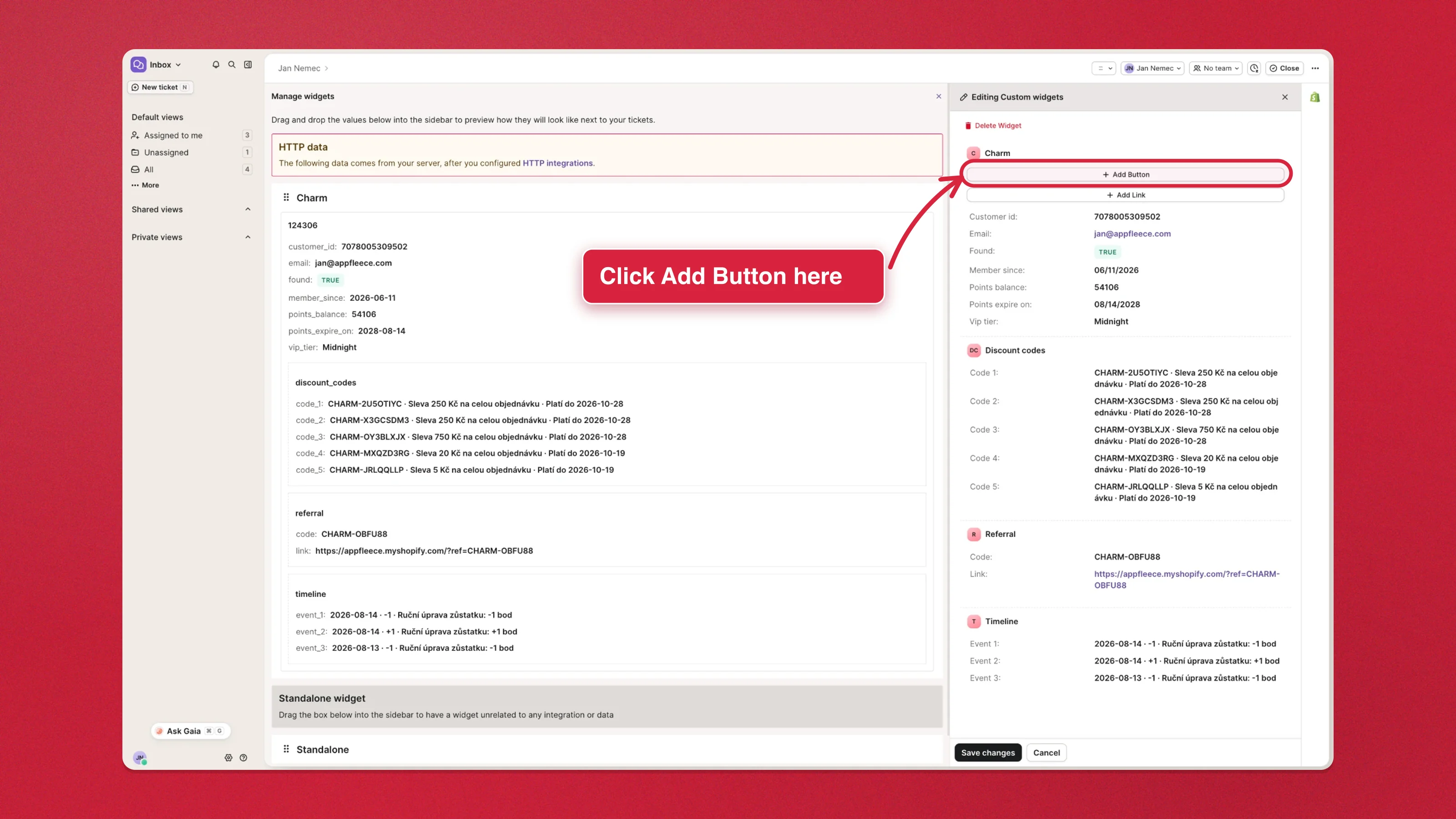
| Field | Value |
|---|---|
| Button title | Adjust points |
| Method | POST |
| URL | https://charm.appfleece.app/api/v1/customers/{{customer_id}}/points/adjust |
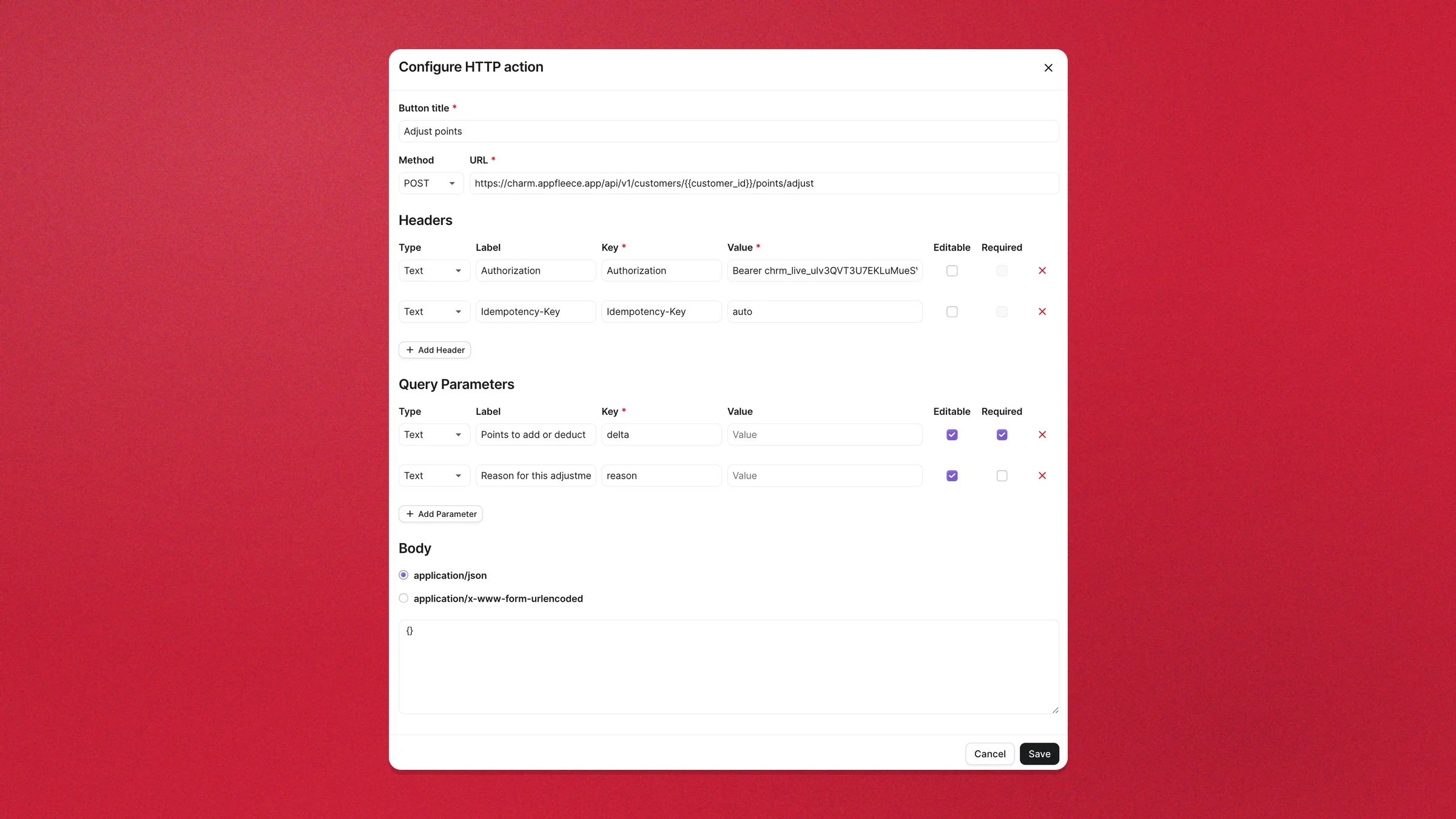
Under Headers, add two rows — again pasting your own key after Bearer, exactly as in step 2. Both are fixed values the agent never sees, so leave Editable and Required clear on each:
| Type | Label | Key | Value | Editable | Required |
|---|---|---|---|---|---|
Text | Authorization | Authorization | Bearer chrm_live_… | ||
Text | Idempotency-Key | Idempotency-Key | auto |
Under Query Parameters, add the two fields the agent does fill in. The Label is what they read in the button’s dialog; without one Gorgias falls back to the raw key and your team gets a box called delta:
| Type | Label | Key | Value | Editable | Required |
|---|---|---|---|---|---|
Text | Points to add or deduct | delta | leave empty | ✓ | ✓ |
Text | Reason for this adjustment | reason | leave empty | ✓ |
Body comes last in the dialog and stays empty — leave the {} that Gorgias pre-fills. The amount travels in the query string, not the body; the caution below explains why that is not a matter of taste.
delta is a signed whole number and the same field does both directions: 200 adds two hundred points, -200 deducts them. No plus sign is needed for adding — and none is accepted, so don’t prefix +. A deduction larger than the balance is capped at the balance rather than going negative.
reason is stored on the adjustment and shows up as the second line of that entry in the customer’s Timeline history in Charm — see it below. It is not posted into the Gorgias conversation; the ticket only gets the one-line record that the action ran. Anything past 500 characters is truncated, and if you leave it blank Charm falls back to a localized “Awarded via API”.
{{customer_id}} comes from the card itself, which is why the widget must be in the sidebar before buttons can work.
The Idempotency-Key header is what stops a double-click from paying a customer twice, and auto is a constant — it belongs in a header precisely because a header is fixed at configuration time and never reaches the agent. Charm reads the key from a query parameter too, but only a value the agent must edit per run belongs there, and with auto there is nothing to edit. What it actually does.
Once saved, the button appears on the Charm widget. Clicking it asks the agent for the two fields under the labels you gave them, not the raw keys — the amount and the note. Nothing else:
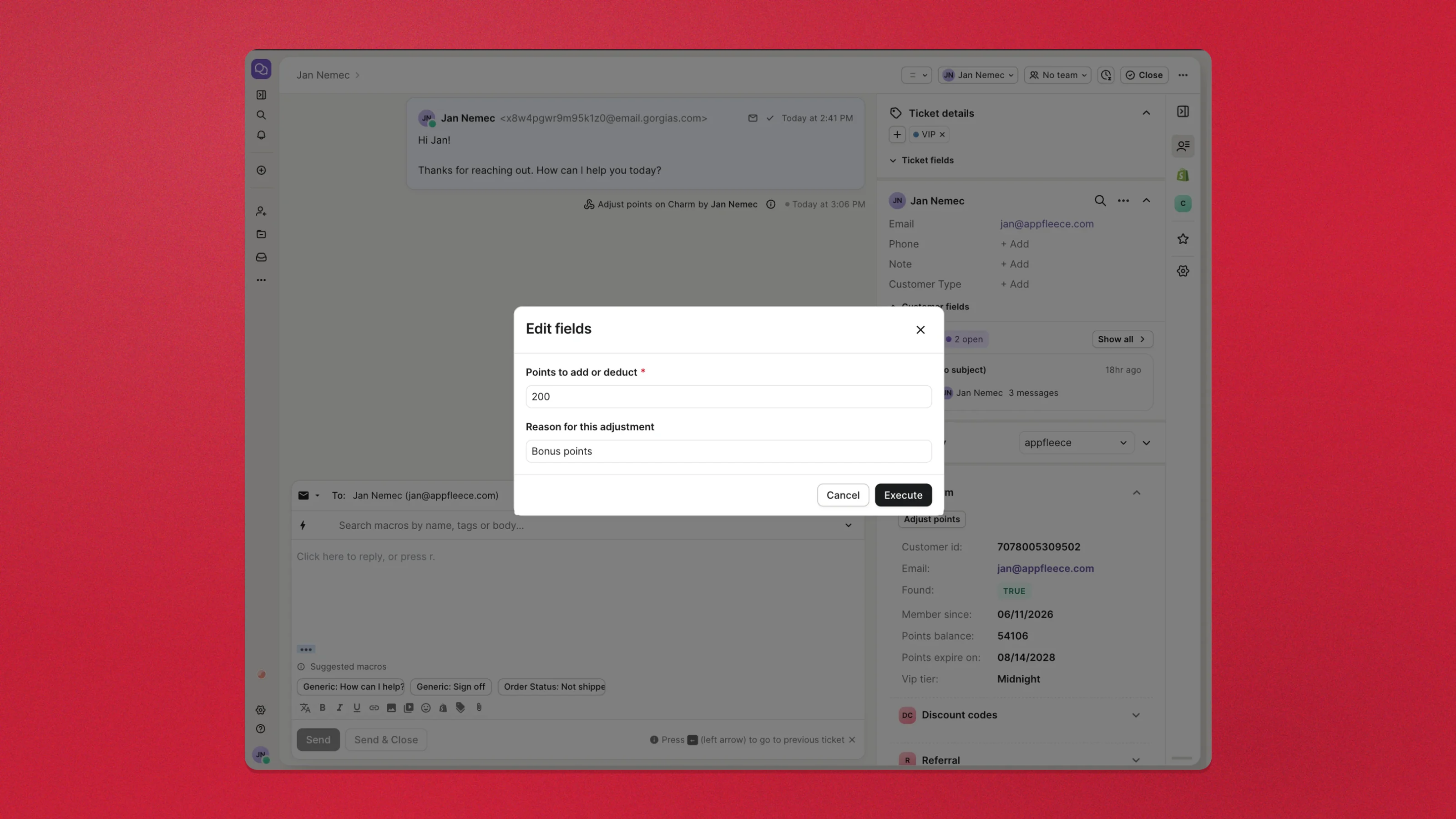
Execute runs it, and the ticket keeps a record of who did what and when:
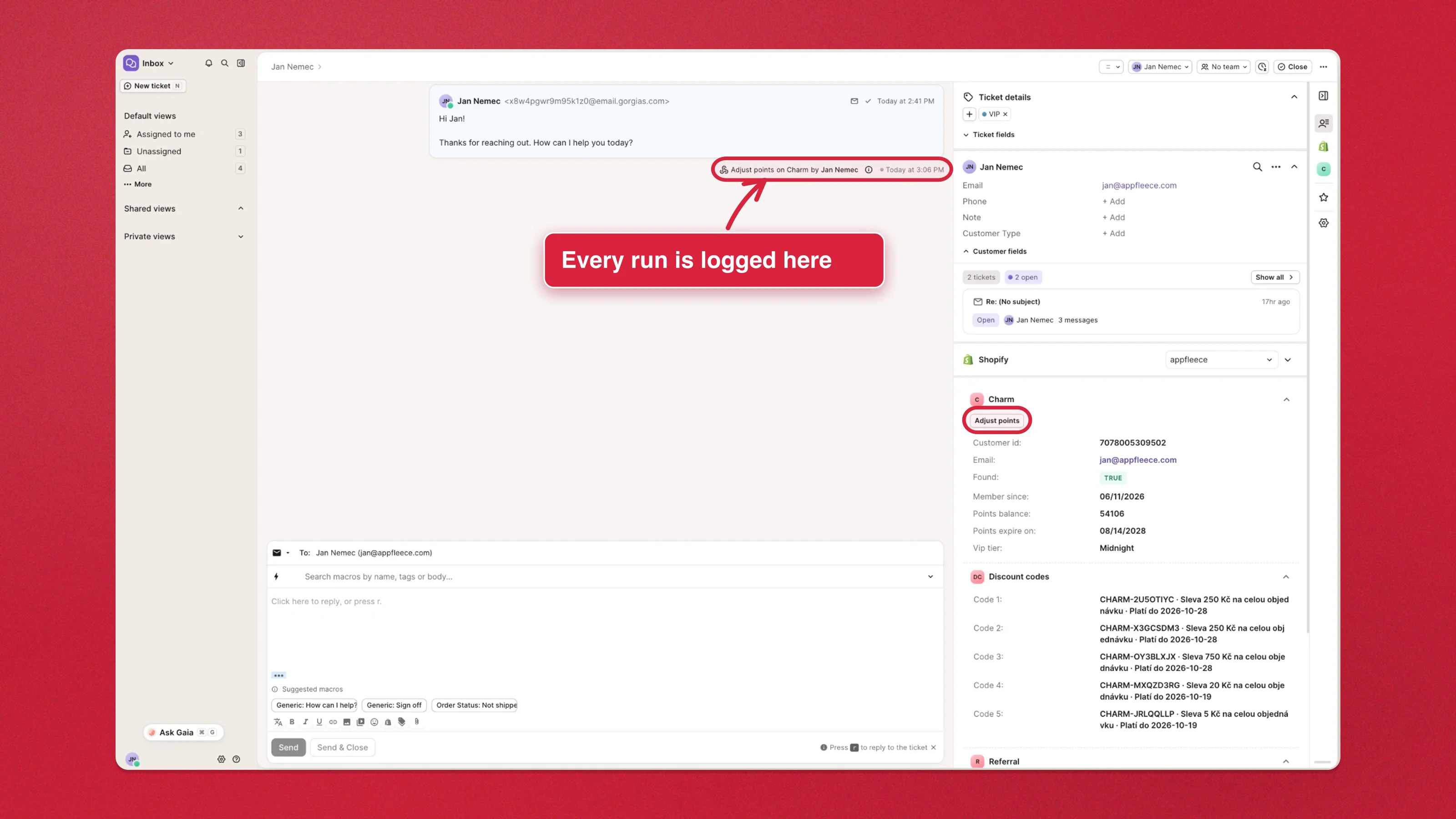
The balance moves in Charm the moment the agent hits Execute — no sync, no delay. The adjustment lands in that customer’s Timeline history with the note the agent typed and the name of the key that made it, so the loop from ticket to loyalty record closes end to end:
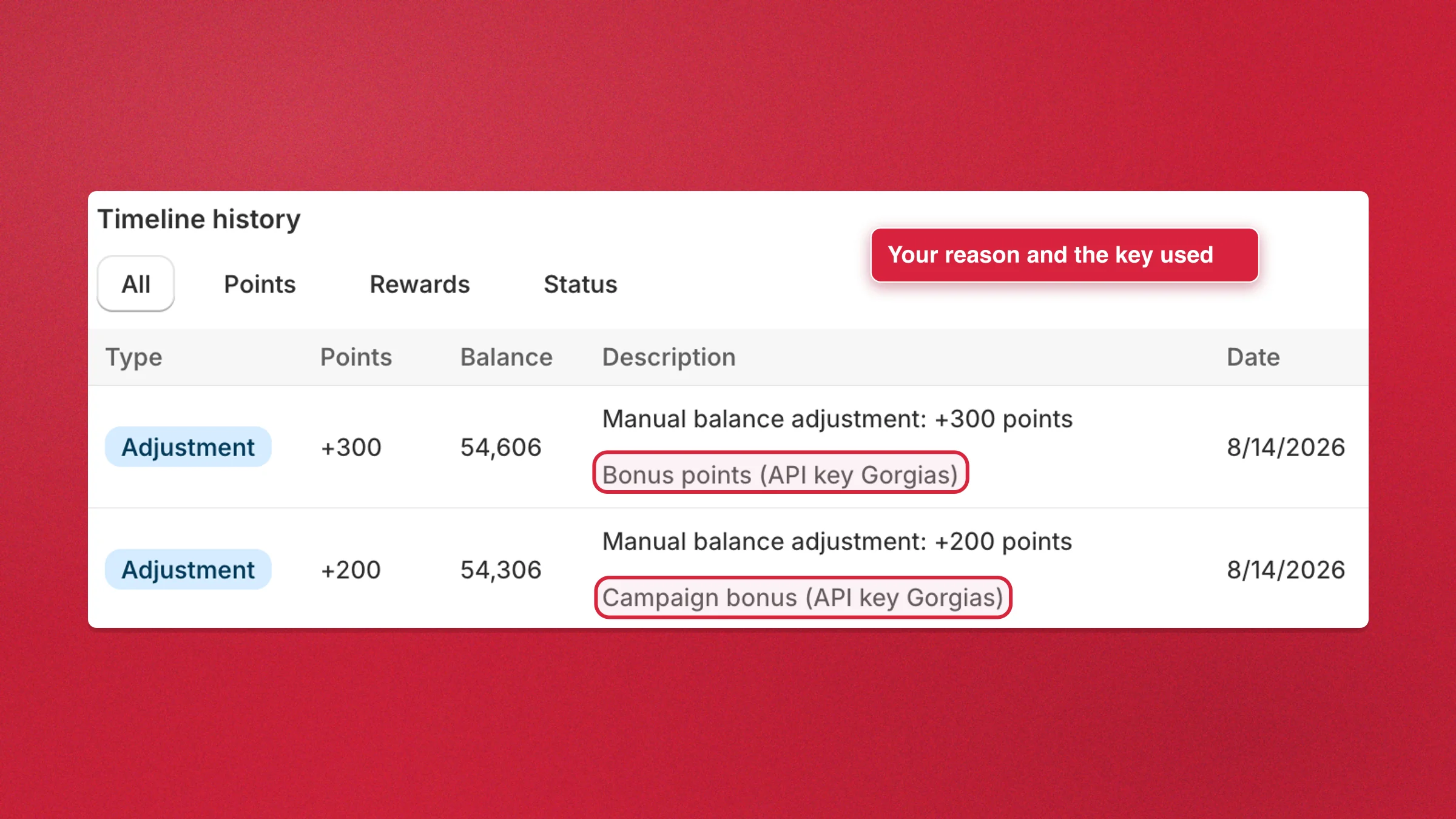
This is also why the key’s name matters: API key Gorgias in that line tells you at a glance the points came from the helpdesk rather than an import or a manual edit in the admin.
Redeem a reward
Section titled “Redeem a reward”A second button can spend a customer’s points on a reward and mint them a real discount code, without the agent leaving the ticket.
It is built the same way as Adjust points: two headers, nothing in the body, and the reward travels as a query parameter the agent picks from a dropdown.
1. Copy the reward list from Charm
Section titled “1. Copy the reward list from Charm”The Gorgias card in Charm has this ready: Settings → Integrations → Gorgias shows Rewards for the redemption dropdown with a Copy button — the exact semicolon-separated list to paste in the next step, built from every enabled reward.
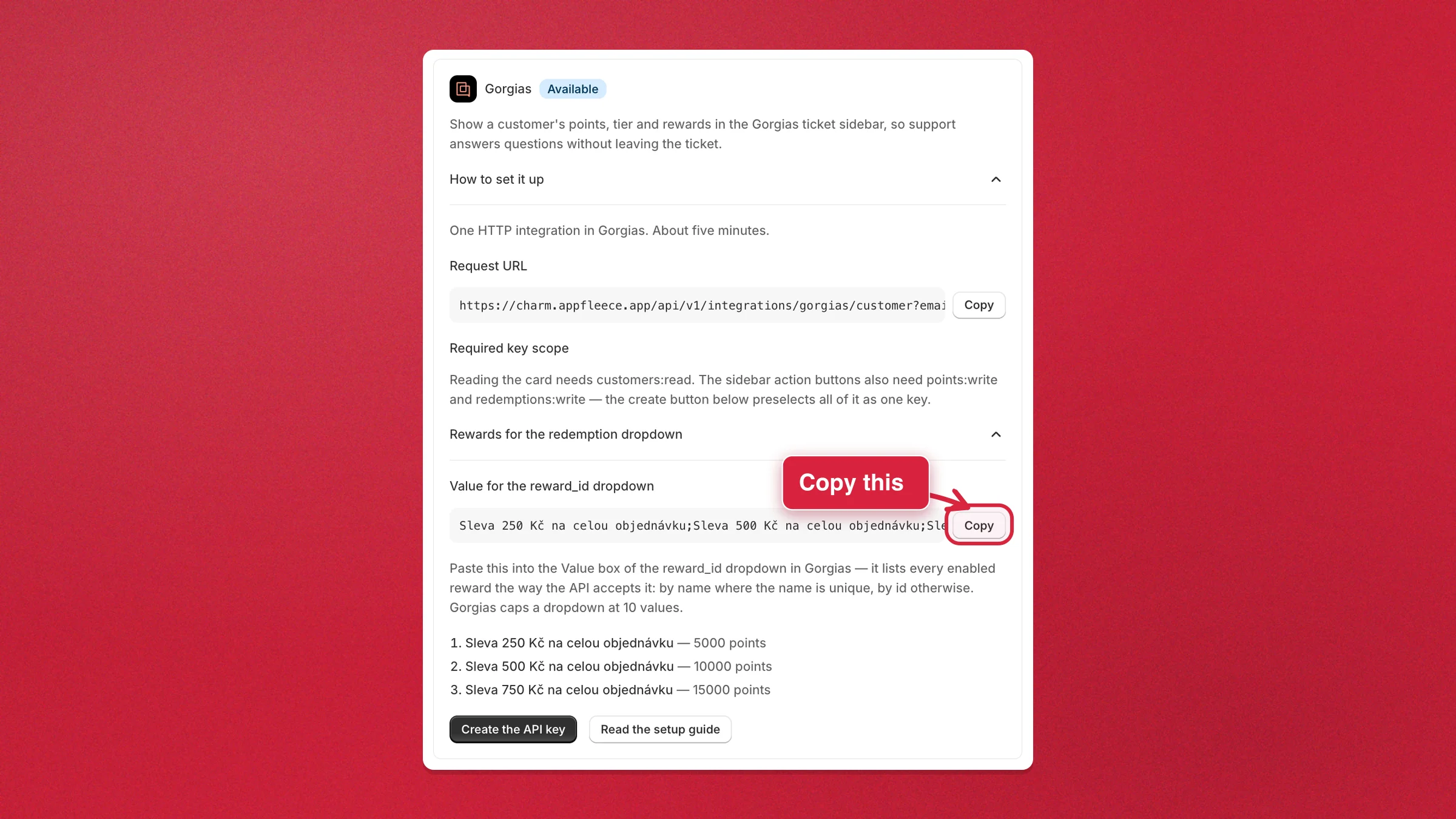
The list uses each reward’s name where it is unique and falls back to its id where it is not, because a Gorgias dropdown shows the agent exactly the values it sends — and Charm’s API accepts either. Names are matched generously (250 Kč voucher, 250 kc voucher and 250-KC-VOUCHER are all one reward), but a name shared by several rewards is refused with a 422 listing the candidates rather than one being picked for the customer.
Out of the box the list is all ids, because Charm names every reward after its type — three amount rewards are all called Amount discount. When that is the case the card shows Use readable names: one click renames those rewards to the label customers already see (Sleva 250 Kč na celou objednávku, …) and the list regenerates as readable text. Nothing customer-facing changes — the storefront never showed these names — and rewards you have named yourself are left alone.
Two things worth knowing:
- Renaming a reward breaks a dropdown built from its old name — the button in Gorgias then returns a
422. Ids keep working forever, names only until the next rename; after renaming, re-copy the list from the Charm card. - Prefer the API?
GET https://charm.appfleece.app/api/v1/rewardswith the key from step 1 returns each reward’sidandname.
2. Add one button for all of them
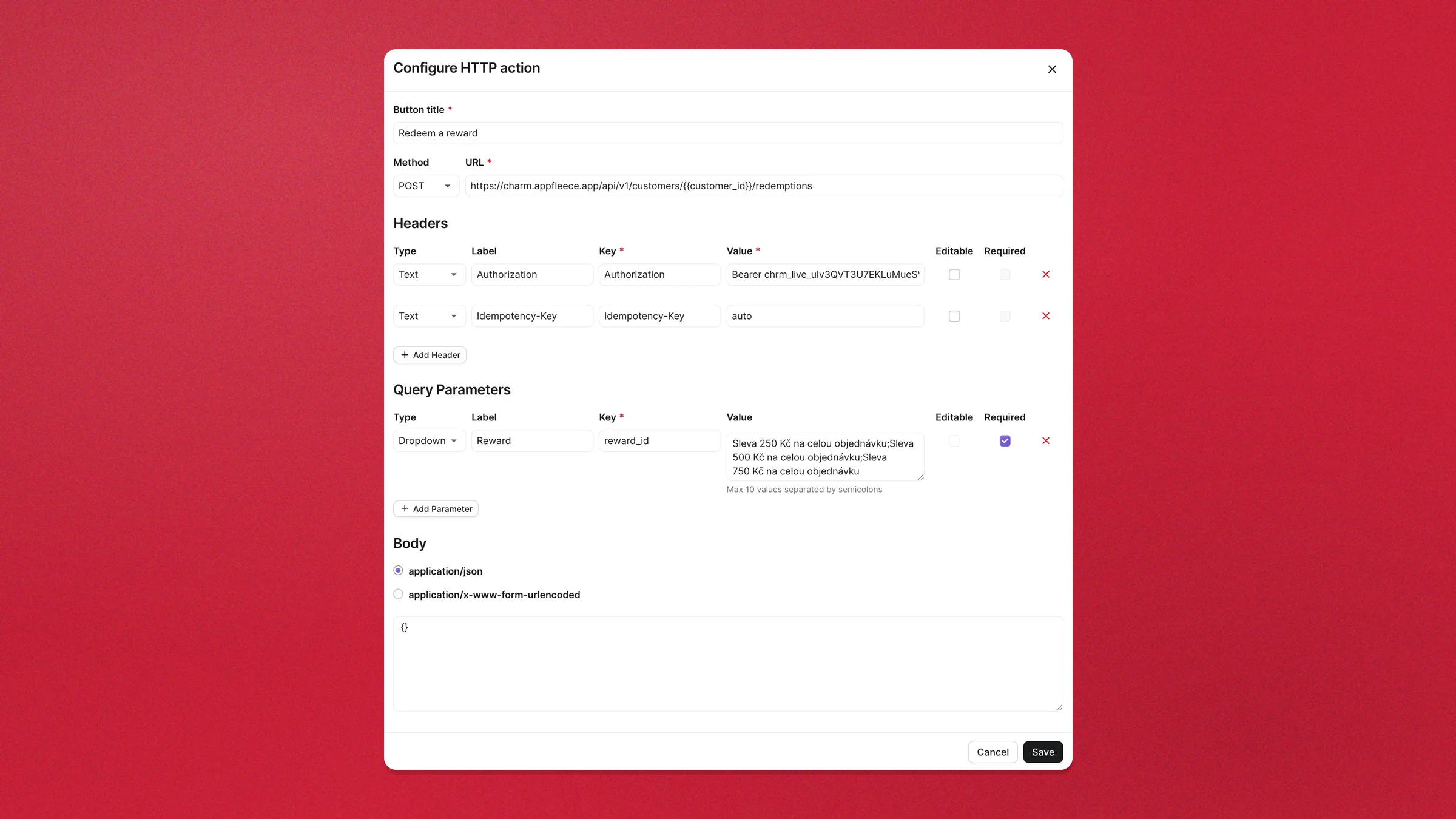
Section titled “2. Add one button for all of them”Click Add Button again and fill in the HTTP action:
| Field | Value |
|---|---|
| Button title | Redeem a reward |
| Method | POST |
| URL | https://charm.appfleece.app/api/v1/customers/{{customer_id}}/redemptions |
Headers are the same two as on the Adjust points button — your own key after Bearer, and auto — both fixed and invisible to the agent:
| Type | Label | Key | Value | Editable | Required |
|---|---|---|---|---|---|
Text | Authorization | Authorization | Bearer chrm_live_… | ||
Text | Idempotency-Key | Idempotency-Key | auto |
Under Query Parameters there is just one row — the reward the agent picks. Editable cannot be ticked on a Dropdown and does not need to be: choosing from the list is the editing.
| Type | Label | Key | Value | Editable | Required |
|---|---|---|---|---|---|
Dropdown | Reward | reward_id | your reward names or ids, separated by semicolons | ✓ |
The Body stays empty — leave the {} Gorgias pre-fills.
3. What the agent gets
Section titled “3. What the agent gets”There is no amount and no note to type — the agent picks a reward and hits Execute, and the run is logged in the conversation like any other action.
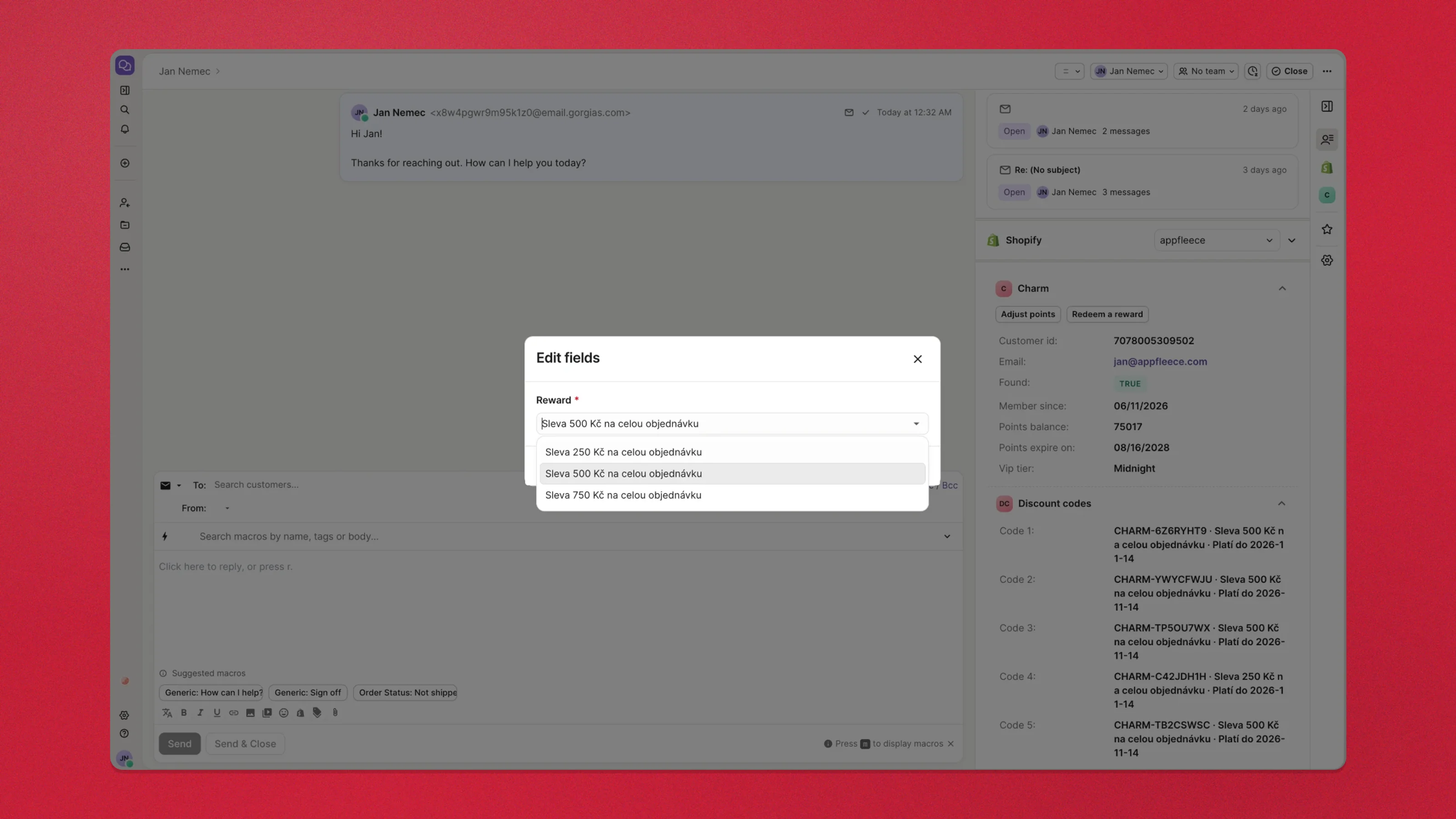
Charm deducts the points, mints a real discount code for that customer, and the code appears at the top of the card’s Discount codes section — ready to paste into a reply — the next time the card refreshes. The spend lands in the Timeline in the same breath.
A redemption made by mistake can be reversed — POST /redemptions/{redemption_id}/reverse in the API undoes it — but there is no button for that in the sidebar, which is the other reason to keep one button per reward and name it after exactly what it grants.
Why the Idempotency-Key matters
Section titled “Why the Idempotency-Key matters”Every write in Charm’s API requires an idempotency key so a retry cannot repeat the operation. Real integrations generate a fresh one per call, but a Gorgias button cannot: its configuration is fixed, so whatever you type in is what every run sends. That is why the buttons above send the literal auto instead of a key — Charm then works one out from the request itself, which is something a fixed configuration can say once and never revisit.
What that means in practice:
| What the agent does | What happens |
|---|---|
| Double-clicks the button | The second click is refused; the customer is charged once |
| Runs it again within a minute, identically | Error 409 — the action did not run twice |
| Runs it again with a different amount, note or reward | A new operation, straight away |
| Runs the identical action again a minute later | A new operation — the deliberate repeat you meant |
So the agent never types a key, never sees one, and cannot get it wrong.
The second row is deliberately an error rather than a quiet success. Charm could hand back the first run’s result and say nothing, which is the right answer for software retrying a timed-out call — but here a person is clicking, and telling them “done” when nothing happened is the one failure they cannot spot. The response says how long ago the identical action ran and gives both ways forward: wait out the minute, or change something — the reason, the amount, the reward — which makes it a separate action that goes through immediately.
The card does not refresh itself
Section titled “The card does not refresh itself”Gorgias fetches the card when one of your triggers fires and then renders what it stored. Running an action button is not a trigger, so the balance and timeline an agent sees straight after adjusting points are still the ones from the last fetch. Reloading the ticket brings them up to date.
If you want the card to catch up on its own, tick Ticket message created in the HTTP integration as well: Gorgias writes a confirmation message into the ticket after every action, which fires that trigger. The cost is a request per message in every conversation, which is well within the limits but no longer the quiet two-trigger setup this guide recommends.
Troubleshooting
Section titled “Troubleshooting”Every call returns invalid_token. The key was rotated (rotating a key revokes the old one instantly), or it was created in a different store from the one you’re calling. Create a fresh key in the right store and paste it again — including the word Bearer before it.
Everything returns 403 access_required. API access hasn’t been switched on for your store yet. Ask in the support chat.
A reply went out with {{ticket.customer.firstname}} visible in it. The braces were typed into the reply box instead of applied from a macro — Gorgias only interpolates variables when a macro is applied. Save the text as a macro in Settings → Macros and insert it from there.
An action button returns Error 409 right after a successful run. With idempotency_key=auto this is the duplicate guard, not a misconfiguration: the identical action already ran within the last minute and was not repeated. Wait a minute, or change the reason, amount or reward — any difference makes it a separate action that runs straight away. Check the balance before retrying; the first run did work.
An action button returns Error 409 every time, including a repeat with different values. The button is sending a fixed key of its own rather than auto — usually charm-{{ticket.id}} left over from an older setup, which every run repeats unchanged. Set the Idempotency-Key header to auto, and delete any idempotency_key query parameter left beside it. The first run of a button always works, so this only shows up on the second action on the same ticket.
The widget isn’t offered in the sidebar editor. The integration hasn’t fetched anything for that ticket’s customer yet. Add a tag to the ticket to fire Ticket updated, reload, and look again.
The card says found: false for a customer you know is a member. The ticket’s customer e-mail differs from the one in Charm — test tickets in particular often carry a Gorgias relay address like x8w4pgwr@email.gorgias.com rather than the shopper’s real address. The card shows the address it looked up, so compare that with the one on the customer in Charm.
A 422 validation_error mentioning e-mail. The ticket has no customer e-mail at all, which happens on phone and SMS tickets.