

Install & connect
Charm installs like any Shopify app — one click from the App Store, then a short guided onboarding.
Install
Section titled “Install”- Open the Charm listing and click Add app.
- Approve the requested access scopes (see below).
- Charm opens its onboarding wizard. It scans recent orders and products to suggest a starting program — you can accept or customize.
It reads a few store signals — currency, recent paid orders, and catalog — to choose a sensible starting draft you can tune before launch:
- Stores with order history — Charm reads your recent paid orders (average order value, currency, order frequency) and sizes the points-per-spend rate and reward thresholds to your real economics, so the draft matches how customers already buy.
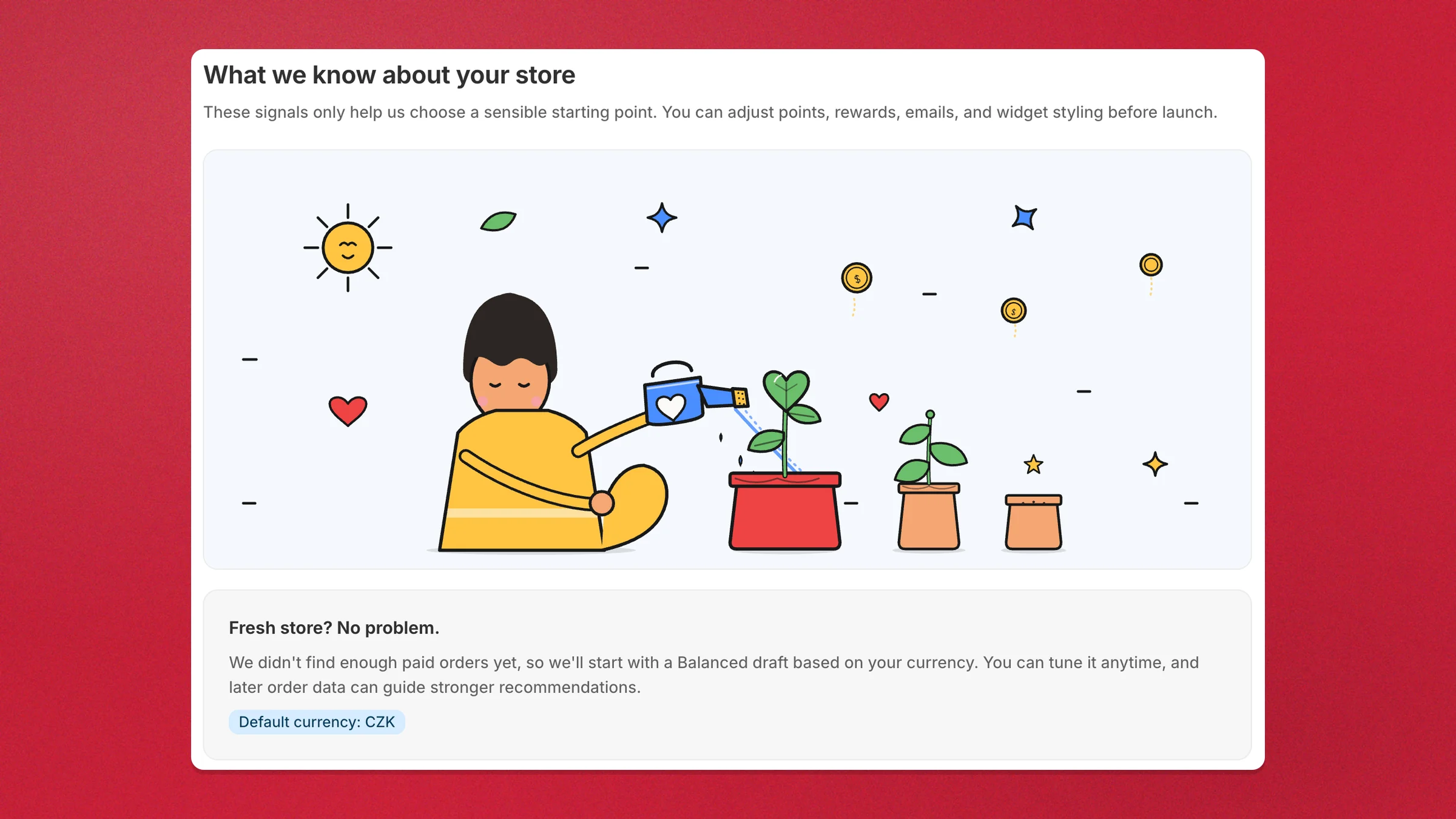
- Brand-new stores — with too few paid orders to learn from, Charm shows a “Fresh store? No problem” note and starts with a Balanced draft based on your currency. As orders come in, that data can guide stronger recommendations later.
Either way, nothing is locked in — you can adjust points, rewards, emails, and widget styling before launch.
Access scopes
Section titled “Access scopes”Charm requests only the scopes it needs to run loyalty natively:
| Scope | Why |
|---|---|
read_customers, write_customers | Read customer accounts; tag and segment members |
read_customer_merge | Keep loyalty balances correct when two customer profiles are merged |
read_orders, write_order_edits | Award points on orders, detect refunds/cancellations, add a reward line to an order |
read_reports | Attribute store revenue to members in Analytics |
read_products, write_products, write_purchase_options | Product/variant targeting, membership selling plans |
read_discounts, write_discounts | Mint redemption discount codes |
read_store_credit_accounts, read_store_credit_account_transactions, write_store_credit_account_transactions | Store-credit cashback and credit rewards |
read_themes, read_checkout_and_accounts_configurations | Detect which storefront, checkout, and customer-account surfaces are live |
read_locales, read_markets, read_online_store_pages, read_online_store_navigation | Localized copy and correct storefront links across Shopify Markets |
read_legal_policies | Link your store’s terms and privacy policy from the program’s join step |
write_files | Upload reward and program images to your Shopify Files |
After install
Section titled “After install”- Customer accounts — Charm renders a native loyalty block in the Shopify customer account; no theme work required.
- Storefront widget — off by default. Turn it on under Visibility when you’re ready (see Going live).
- Data migration — moving from another app? See the importer under Settings → Data migration (there’s a built-in Rivo preset with a dry-run and revert).
Next: Your first program →